How to Connect Ledger to Exceefy
Automatically import your blockchain transactions from Ledger to Exceefy in just a few clicks. This guide shows you how to retrieve your public address via Ledger Live and set up synchronization.
Step 1: Find Your Public Address in Ledger Live
On the Desktop Application
- Open Ledger Live on your computer
- Connect your Ledger device (Nano S, Nano X, Nano S Plus, or Stax)
- Unlock your device with your PIN code
- In Ledger Live, go to the "Accounts" tab
- Select the account you want to import (Ethereum, Polygon, etc.)
- Click on "Receive"
- Verify the address on your Ledger's screen
- Click the copy icon 📋 to copy the complete address
💡 Tip: Your public address always starts with 0x and contains 42 characters for EVM blockchains.
Finding Your xpub (for Bitcoin and UTXO Blockchains)
If you use Bitcoin or other UTXO-based blockchains, you can also use your xpub (extended public key) instead of a single address. This allows Exceefy to track all your derived addresses automatically.
- In Ledger Live, go to the "Accounts" tab
- Select your Bitcoin (or other UTXO) account
- Click the wrench icon (settings) next to the account
- The xpub is displayed in the account details
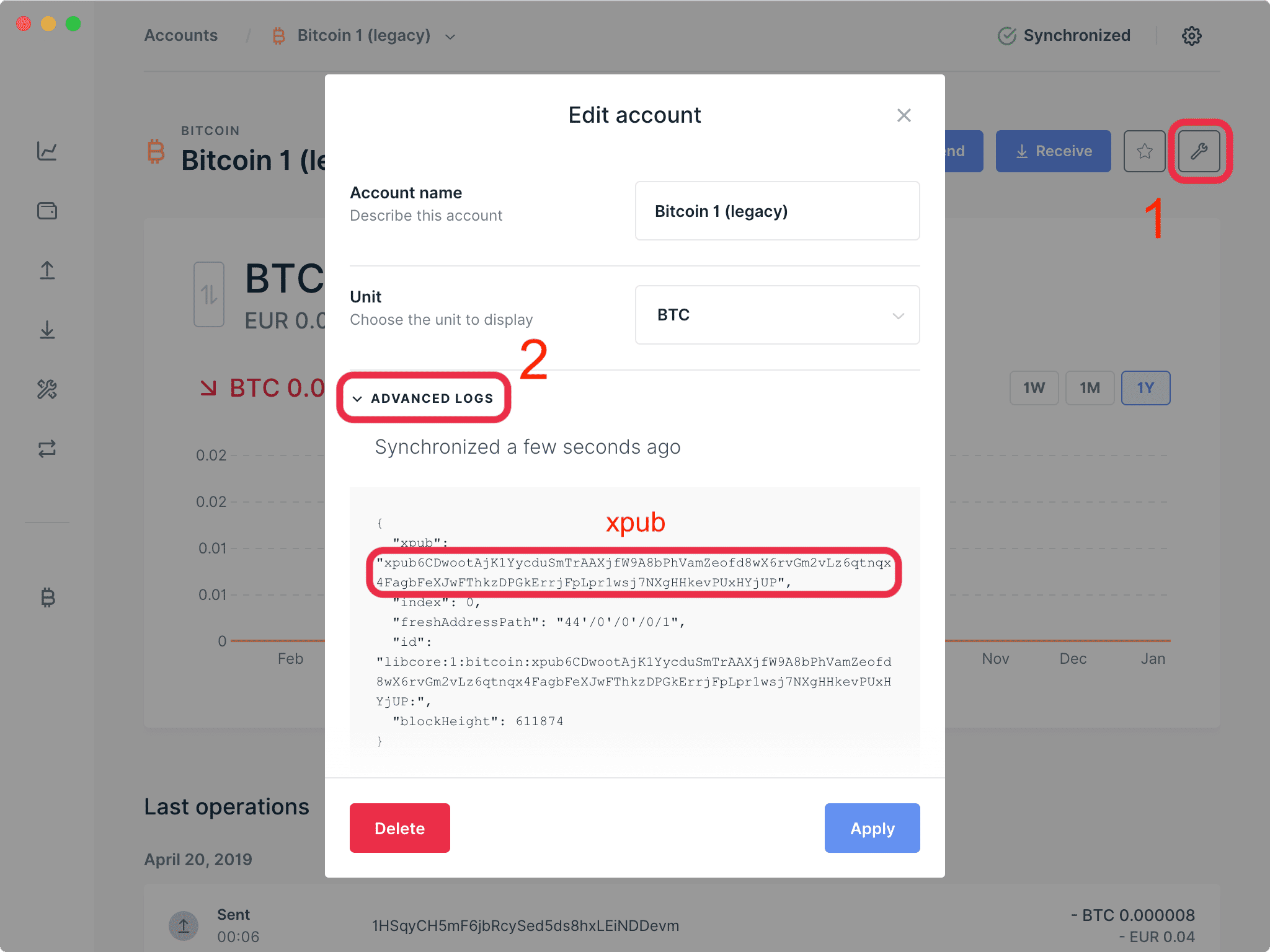
💡 Tip: An xpub starts with xpub, ypub, or zpub depending on the account type (Legacy, SegWit, or Native SegWit).
On the Mobile Application
- Open the Ledger Live app on your phone
- Connect your Ledger via Bluetooth (Nano X or Stax only)
- Unlock your device
- Select the desired account
- Tap "Receive"
- Verify the address on your Ledger
- Copy the displayed address
Step 2: Identify Your Active Blockchains
Before importing to Exceefy, check which blockchains you have transactions on:
- Review your accounts in Ledger Live
- Check the distribution of your assets by network
- Note the blockchains where you have tokens or activity
Step 3: Connect Ledger to Exceefy
Now that you have your address, import it into Exceefy:
Configuration on Exceefy
- Go to https://exceefy.com/en/parametres
- Click "Add a wallet"
- Select "Ledger" from the list of sources
- Click "Add an address"
- Select the blockchains you want to import
- Choose only networks where you have activity
- You can select multiple blockchains at once
- Paste your public address or xpub (copied from Ledger Live)
- EVM address format:
0x...(42 characters) - xpub format:
xpub...,ypub..., orzpub...(for Bitcoin/UTXO chains) - Make sure it's complete
- Click "Save and connect"
- The first synchronization starts automatically
- Exceefy retrieves all your historical transactions
- This may take a few minutes depending on your activity
Automatic Synchronization
Once configured, your transactions are automatically updated:
- Automatic sync: every 24 hours
⚠️ Important Note
You only share your public address (visible on the blockchain). Your private key and recovery phrase always remain secure in your Ledger and are never shared.